
1 / 3
Premium Interactive Tool$4.99 $1.99 Sale
Advanced Celebration Budget
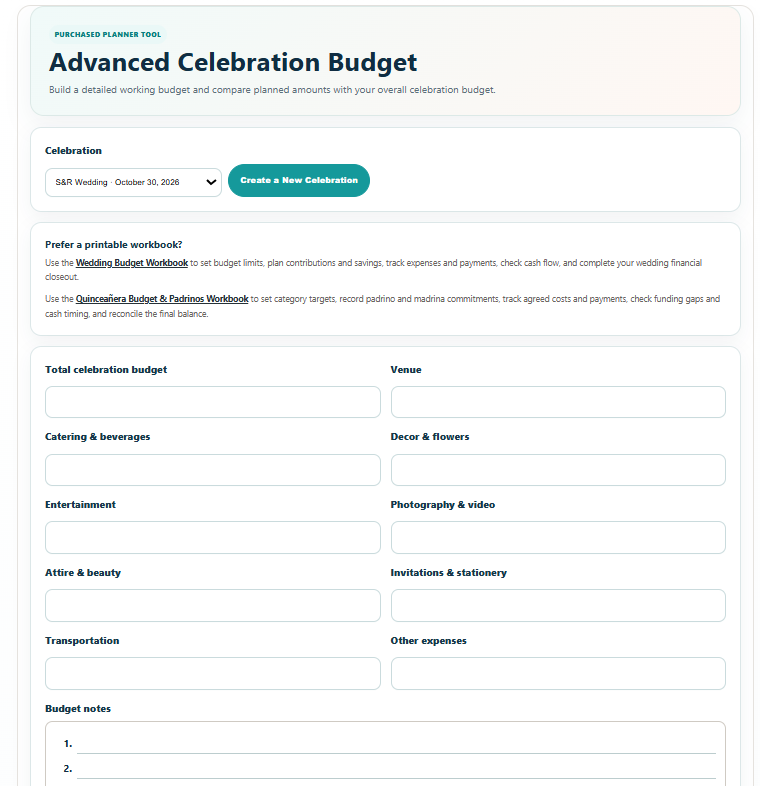
Turn your starting budget into a detailed working plan with category allocations, notes and saved celebration data.
✓ Secure checkout✓ Tutorial included
What you get
- Detailed overall celebration budget
- Budget allocation across Venue, Catering & Beverages, Decor & Flowers, Entertainment, Photography & Video, Attire & Beauty, Invitations & Stationery, Transportation, and Other Expenses
- Automatically calculated Allocated and Remaining totals in the PDF report
- Unlimited numbered Budget Notes
- Unlimited numbered Budget Priorities
- Unlimited numbered Upcoming Payments
- Unlimited numbered Budget Decisions & Next Actions
- Contingency / Reserve Amount planning
- Save Progress with access from Planner Dashboard → Saved Progress
- Branded Print / Save PDF report using the current My Celebration Plan PDF format
Quick Tutorial
How it works
A practical step-by-step guide to using this tool.
- Select the celebration you are planning, or use Create a New Celebration first. Check the selected celebration before entering figures so each event keeps its own budget.
- Enter your Total celebration budget as the overall spending limit. Use Budget priorities to identify the areas you most want to protect before allocating money.
- Allocate amounts to Venue, Catering & beverages, Decor & flowers, Entertainment, Photography & video, Attire & beauty, Invitations & stationery, Transportation and Other expenses. Enter the current planned total for each category rather than individual payment transactions.
- Save your progress and use Print / Save PDF to review the automatically calculated Allocated and Remaining totals in the budget report. If the allocation exceeds your overall limit, revise category amounts before accepting more costs; use the remaining amount to see how much room is still available.
- Enter the Contingency / reserve amount you intend to protect and explain its purpose in Budget notes. Keep that reserve in mind when reviewing Remaining; the reserve field records your plan and does not represent a payment.
- Use Budget notes for quote assumptions, inclusions, exclusions and reasons an allocation changed. Add numbered entries as needed so the working figures remain understandable later.
- In Upcoming payments, record each vendor or item, amount, due date, payment method and status. Update these notes as payments change; use the separate payment or expense tool when you need transaction-level balances.
- In Budget decisions & next actions, write the decision, responsible person, deadline and next action. Use this list to resolve funding gaps or category changes before committing money.
- Click Save Progress after entering or changing the plan. Return through Planner Dashboard → Saved Progress, select the same celebration and review the latest saved figures before making further changes.
- Use Print / Save PDF to produce the current branded budget report. Review the totals, priorities, payment notes, reserve and next actions before sharing; save and export again when the working budget changes.