
1 / 6
Premium Interactive Tool$5.99 $2.99 Sale
Menu & Catering Planner
Organize menu selections, dietary requirements, catering quantities and service notes.
✓ Secure checkout✓ Tutorial included
What you get
- Celebration Food Plan for catering approach, service style, expected meal recipients, adult and child counts, vendor or staff meals, service time, provider and venue or kitchen notes
- Menu Builder for menu items, menu sections, providers, planned servings, serving methods, dietary tags, confirmation status and notes
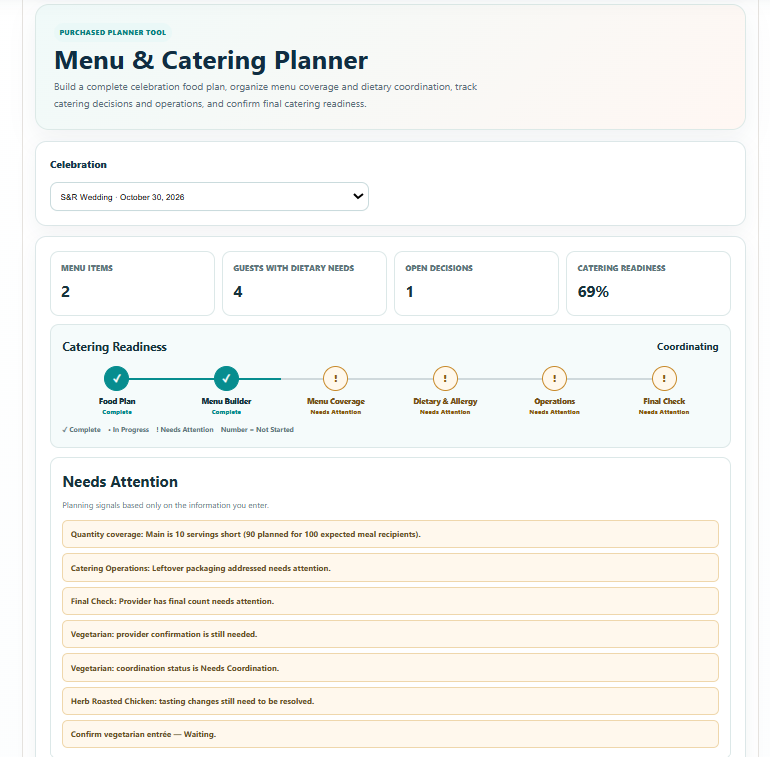
- Automatic Menu Coverage check against expected meal recipients, including shortages and planner-confirmed intentional partial coverage
- Dietary & Allergy Coordination for dietary needs, guest counts, assigned menu options, provider confirmation, preparation or cross-contact notes and coordination status
- Tasting & Menu Decisions tracking for tasting date, provider, item tested, rating, feedback and Keep / Change / Remove / Undecided decisions
- Open Catering Decisions with owner, due date, status and notes
- Catering Operations review covering setup, staffing, bartending, cleanup, breakdown, cake cutting and leftover packaging
- Final Catering Check for menu, dietary, staffing, equipment, kitchen, final counts, service timing and venue/provider responsibilities
- Catering Command Summary, Catering Readiness stages and automatic Needs Attention follow-up signals
- Save Progress connected to the selected celebration
- Professional branded multi-page Print / Save PDF report with summary, Needs Attention, food plan, menu coverage, dietary coordination, tasting and decisions, operations, final checks and next step
Quick Tutorial
How it works
A practical step-by-step guide to using this tool.
- Select the correct celebration, or create one first. In Food Plan, enter the catering approach, service style, provider, service time and venue or kitchen notes.
- Set the expected meal recipients, including adult and child counts and any vendor or staff meals. Update these inputs when the confirmed attendance changes so the coverage check uses the current food plan.
- In Menu Builder, add each menu item with its section, provider, planned servings, serving method, dietary tags, confirmation status and notes. Use separate items where serving quantities or provider responsibilities differ.
- Review Menu Coverage against expected meal recipients. Resolve flagged shortages, or explicitly confirm intentional partial coverage when an item is meant for only part of the group.
- In Dietary & Allergy, add each need with the affected guest count and assigned menu option. Record provider confirmation, preparation or cross-contact notes and coordination status; confirm ingredients and preparation directly with the provider.
- In Tasting & Decisions, record tasting dates, items tested, ratings and feedback. Set each menu decision to Keep, Change, Remove or Undecided, then update the Menu Builder to reflect the agreed choice.
- Add unresolved items to Open Catering Decisions with an owner, due date, status and note. Use this list to finish decisions that affect quantities, providers or service.
- Work through Catering Operations for staffing, equipment, kitchen access, setup, bartending, cake cutting, cleanup, breakdown and leftover packaging. Record responsibility and mark irrelevant items Not Applicable.
- Use the command summary, Catering Readiness and Needs Attention to find unfinished work. Complete Final Check only after counts, menu, dietary coordination, timing and venue/provider responsibilities are confirmed.
- Click Save Progress after changes. Use Print / Save PDF for the current catering report and share the agreed information with the responsible provider; update, save and export again if counts or service details change.